Showing posts with label Array. Show all posts

Wednesday, March 6, 2013

Not my type

In programming languages variables can be of a specific data type, such as integers or strings of characters.  If a language requires variable to be defined as containing only a specific class of data it is called strongly typed.  If the variables can contain any kind of data the language is weakly typed.  If the language is experimental it is prototyped. If it requires punch cards it is teletyped

http://www.staff.ncl.ac.uk/roger.broughton/museum/iomedia/images/pc6.jpg

As mentioned previously, everything in PowerShell is an object.  But simple scalar variables still have a data type.  PowerShell makes a best guess at what the type should be and does conversions on the fly so you usually don't have to worry about the data type of a variable or performing explicit conversions.


Here PowerShell converts the string to an integer, multiplies it with the floating point number, then adds the hexadecimal number.  When I give the answer it converts the integer to a string so it can be concatenated with the rest of the text.

Most of the time PowerShell correctly determines the data type and formats the output accordingly.  But what if you need to force a variable to be a specific type?  Precede either the variable or expression with the .NET value type enclosed in square brackets.  In this example we divide two numbers and cast the result as an integer and string respectively.


But that looks like it involves a bunch of typing.  Wouldn't it be nice if there was a shortcut to access those system types?  Yes it would be nice so that's why the nice people who made PowerShell included some type accelerators.  Instead of using [System.Int32] I can use [int] and instead of [System.String] I can use [string]


Are there many of these type accelerators available?  Yes there are. Oisen Grehan 's blog post not only shows all of the accelerators available but a handy way to list them all.  One that does not show up in the list is the [DateTime] accelerator for [System.DateTime].  Notice how flexible this value type is.


Now go back and check Oisen Grehan's blog post again.  There's all kinds of useful stuff that is just as flexible as the [DateTime] accelerator.  For example, there is the [ipaddress] data type that accepts a string and converts it to an IP address.


This is pretty sweet.  Notice that the type accelerator processes both IPv4 and IPv6 addresses.  If I need to prompt my user for an IP address I don't need to parse and validate it.  I can just assign it to a variable that has the [ipaddress] type and wrap it with some error handling then let .Net and PowerShell do the heavy lifting.

One other handy accelerator is the array type.  Why is it handy?  Because it gives us access to all of the methods for the .Net array class.  To access any of the .Net class methods specify the class in square brackets followed by two colons and then the method.


Note that that when calling these methods they only operate on the variable you pass.  If you need to keep the array in its original state you need to copy it first and then call the method on the copy.


Type accelerators are one of PowerShell's many useful and time saving capabilities.  If you never introduce yourself you might not know that PowerShell is just your type.


Sunday, August 19, 2012

Splat in the Hat

In PowerShell the @ character is called the splat operator.  I'm still trying to figure out why it is called splat.
I'm pretty sure that's not why.  Nevertheless the splat operator has many uses in PowerShell.

In a previous post I demonstrated using the splat operator to create a custom object.

$X = New-Object PSObject -Properties @{
     Name="ObjectName";
     SomeValue=1;
     AnotherValue=10
}

The splat operator is also used to define an array.

$Array = @("one","two","three","four")

PowerShell is forgiving and will let you define an array without the splat operator.

$Array = "one","two","three","four"

But if you need to force the results to be an array you can use the splat operator.  I frequently do this if I'm creating an array of custom objects.  I first define an empty array, then fill it with the objects.

$Procs = @()
foreach ($P in (get-process | get-unique)) {
   $New = New-Object PSObject -Property @{
      Name=$P.ProcessName;
      Company=$P.Company;
      Product=$P.Product;
      Version=$P.ProductVersion
   }
   $Procs += $New
}
$Procs


The splat operator can also be used to force the results of a command into an array.  Enclose the command or cmdlet in parentheses and precede the opening parenthesis with the splat operator.
In the above example the variable $X has a length of 843 because it measures the length of the string returned by the Dir command.  $Y and $Z have a length of 1 because it is the length of the array.  The length of the first and only element of those single element arrays matches the length of the string $X.  I included the variable $Z to show another way of forcing a variable to be an array.

The splat operator is also used to create hash tables.  Hash tables are similar to dictionary objects in VBScript but are much more versatile.  A basic hash table lets you add and remove members in addition to doing searches.  To create the hash table start with the splat, enclose the table in curly braces, and separate items with semi-colons.

$Meals = @{"Breakfast"="Eggs";"Lunch"="Sandwich";"Supper"="Chicken"}


Another use for hash tables (and by association our friend the splat operator) is to define a group of parameters for cmdlets.  In this use the keys are the named parameters and the values are the input for the parameters.

Notice that when the hash table is used to provide parameters to the cmdlet the variable name is preceded with the splat operator instead of the dollar sign.  This tells PowerShell to process the variable as a hash table and use the keys and values as parameters to the cmdlet.

This technique is really useful for making code more readable.  The cmdlet Write-EventLog lets you add records to the Windows event logs.  In the example below I use the source WSH because its events have free form messages which allows me to use Get-WinEvent to confirm the results.

Write-EventLog -LogName Application -Source WSH -EventID 0 -EntryType Information -Message "I added this to the event log from PowerShell"


That works but the Write-EventLog cmdlet gets cumbersome with all of the parameters on a single line.  If I splat the parameters in a hash table the code becomes much easier to read and costs very little extra typing.

$ELParams = @{
    'LogName' = 'Application';
    'Source'  = 'WSH';
    'EventId' = 0;
    'EntryType'= 'Information';
    'Message' = 'I splatted this to the Application log using PowerShell'
}
Write-EventLog @ELParams


Note that while I hard coded all of the parameter names and values in the hash table I could just as easily use variables for any of them.  This allows for some sophisticated processing inside loops and user defined functions.

One final use for the splat operator is the Here-String.  A Here-String is PowerShell's facility for specifying a large block of text that spans multiple lines.  Start the bock of text with the splat and quote @" and end the block with a quote and splat "@.  (On a personal note "Quote and Splat" is the law firm who handled my divorce settlement.)  Inside the Here-String you can specify line breaks and include quotes and other special characters.  The Here-String will display just as you specified.


The splat operator gives us a variety of shortcuts to keep our code efficient and tidy.  But remember that with great power comes great responsibility.  So remember to splat wisely, unlike this juvenile.

Commentors:  Seriously, does anybody know why they call it splat?

Monday, July 2, 2012

The shortest distance

Everybody likes shortcuts.  If you can save yourself some time and effort, why not take the opportunity?

Powershell offers several ways to save yourself some typing and shorten your command lines and scripts.  Plus you almost never blow yourself up.

One way is to string together all of the slicing and dicing you might need to do.  If a method for an object returns an array and I know I need a specific element in that array I can specify that element  right after the method invocation.  And I can call a method right from that array element.  Allow me to demonstrate.

In a previous example I had to parse the DistinguishedName for a user.  I model my test domain based on a former employer who managed users and computers by location.  Delegations were done so support staff at each site could manage their objects.  My OU structure looks like this:

In order to find the site name for an arbitrary user account I can assign a variable at each step to parse the DistinguishedName.  In this example I also show the value of the variables to confirm each step:

But I don't need to use all those variables.  This can be processed in a single line.  Below I build up each step.  The last line shows how I combine all of these steps into a single command:

Another handy shortcut is to enclose a command in parentheses and do the same slicing and dicing.  In the above example I don't even need to assign the Get-ADUser output to a variable.  I can use the command
 (Get-ADUser AlAlpha).DistinguishedName.split(',')[2].substring(3)

Letting PowerShell process things in parentheses has many uses and works for all cmdlets.  You can nest some really crazy crap and it will still work.  In the following example I know I have a user in Atlanta with the last name Alpha and I'm not sure what the account name is but I have to change his first name to Allen.  The first command get-aduser -searchbase "OU=Atlanta,OU=Locations,DC=toddp,DC=local" -filter * | where {$_.surname -eq 'Alpha'} shows how I can do this search.  In the second command I enclose that first command in parentheses and use that as the identity for my Set-ADUser command.  I call Get-ADUser one last time to show the change was made in the GivenName attribute.

Another PowerShell shortcut is to use aliases for the cmdlets. 
Here we see all of the aliases that start with the letter "g".  Two aliases I use frequently are gm for Get-Member and gwmi for Get-WmiObject.


In this example the Get-ADUser output is piped through the Get-Member cmdlet using the alias GM.

You can create your own aliases using the Set-Alias cmdlet.
After using Import-Module (or its alias, ipmo) to import the ActiveDirectory cmdlets I use Set-Alias to create the alias gadu for the Get-ADUser command.  Note that an alias can only be for a cmdlet, not a cmdlet and its parameters.  You can work around this limitation by using a function as shown in the last example for Set-Alias.


There are two other aliases that you may encounter.

There is a default alias for ForEach-Object which is the percent sign (%) and an alias for Where-Object which is the question mark (?).  This will come in handy.

How cool is this?  I pipe Get-Process through the ForEach-Object shortcut to pull out the ProcessName and use the Where-Object shortcut to show just the processes starting with the letter "c".  That's good enough for me.

In Powershell 3 there is an implied ForEach-Object for arrays.  Instead of piping the array through ForEach-Object cmdlet or shortcut you just enclose the object in parentheses and process the properties you need.
These are the processes running on my Windows 8 demo VM.  But if I need to grab just the process name I can use the syntax (Get-Process).ProcessName
Pretty sweet.  There are some other handy shortcuts coming in PowerShell 3.

So we have all these nice shortcuts.  Shouldn't we use them all the time?  The rule of thumb from our friend Don Jones is that if you are writing a quick and dirty command for yourself, then the shortcuts can save you time and effort.  But scripts with shortcuts look more cryptic and are harder to read.  So if you are creating a more invovled script that will be used by someone else you should be considerate and make it more accessible by avoiding shortcuts. 

Knowing these shortcuts and aliases (or at least how to find what is being aliased) helps you be more efficient.  And if you come across a script written by someone else who used them you won't be caught off guard. 

Tuesday, May 29, 2012

I, Object

As discussed in the post on the pipeline, part of the power behind PowerShell is that the output from most cmdlets is an object or an array of objects.  And cmdlets are designed to process objects received from the pipeline.  Since PowerShell is built on the .Net framework everything is an object.

An object has properties that contain information about the object and is operated on using methods.  For example, I am an object and have properties such as my name and phone number.  To contact me you might use the method of calling my phone number and addressing me by name. 

You can see the properties and methods of an object by piping it through the Get-Member cmdlet.  Even a scalar such as a simple string is still an object.
My string variable has an attribute named length, the number of characters in the string, and a bunch of methods for slicing and dicing the string.

An array is an object that is a collection of objects.  If you pipe an array through Get-Member you get the properties and methods of the objects contained in the array, not the array itself.  Arrays are very accommodating that way since the attributes of the members are much more interesting.

Some objects have many of properties.  Usually you want to keep just the few of those properties so you will use the Select-Object cmdlet to create the subset.

But what if I need to go in the opposite direction?  What if I need to add some properties to an object?  The Add-Member cmdlet is the answer to your question.
This is my string from the previous example.  I use Add-Member to append a property to the string that contains the last character in the string. 

Sometimes it is handy to create an array of custom objects.  I use this technique when my goal is to use Export-CSV to create a spreadsheet of just the information requested by my PHB. 

$CSV = 'C:\Users\Administrator\Documents\DisabledUsers.csv'
$All = Get-QADUser -Disabled -SearchRoot 'OU=Locations,dc=toddp,dc=local' `
          -SearchScope Subtree


$Disabled = @()
foreach ($U in $All) {
    $U.Name
    $New = New-Object Object
    $New | Add-Member NoteProperty Name $U.name
    $New | Add-Member NoteProperty First $U.FirstName
    $New | Add-Member NoteProperty Last $U.LastName
    $New | Add-Member NoteProperty Full $U.DisplayName
    $DN = $U.DN.Split(',')
    $Site = $DN[$DN.Length-4].Substring(3)
    $New | Add-Member NoteProperty Site $Site
    $Disabled += $New
}
$Disabled | Export-Csv $CSV -NoTypeInformation -Encoding ASCII

In this example I'm using the Quest Active Directory cmdlet Get-QADUser to show some information on disabled user accounts.  First I create the empty array by assigning it the value @().  (In PowerShell the @ is called the splat operator.  Apparently the designers thought calling it "splunge" was a bit silly.)  I then use the New-PSObject cmdlet to create a custom object in my loop.  I use Add-Member to add properties for my report to the object, and then append the custom object to the array.  My test domain has an OU named Locations which contains several site OUs and within those site OUs there are OUs for users and computers in the site.  So I parse the DN (distinguished name) property of the user account to determine the site name.

That works but it looks kind of ugly and requires too much typing.  In PowerShell 2 the New-Object cmdlet has been revamped to allow a technique called "splatting".  So instead of a bunch of Add-Member statements you assign all of the properties in a script bock that is preceded by the splat operator.

$CSV = 'C:\Users\Administrator\Documents\DisabledUsers2.csv'
$All = Get-QADUser -Disabled -SearchRoot 'OU=Locations,dc=toddp,dc=local' `
         -SearchScope Subtree


$Disabled = @()
foreach ($U in $All) {
   $U.Name
   $DN = $U.DN.Split(',')
   $Site = $DN[$DN.Length-4].Substring(3)
   $New = New-Object PSObject -Property @{
       Name  = $U.name;
       First = $U.FirstName;
       Last  = $U.LastName;
       Full  = $U.DisplayName;
       Site  = $Site
   }
   $Disabled += $New
}

$Disabled | Export-Csv $CSV -NoTypeInformation -Encoding ASCII

That saves me some typing and it does improve legibility.  But splatting doesn't respect the order of my properties:

So if I need the properties in a specific order I use the Select-Object cmdlet:

$Enabled = $Enabled | Select-Object name,First,Last,Full,Site
$Enabled | Export-Csv $CSV -NoTypeInformation -Encoding ASCII

Which gives us the output like the first example:

This technique gets even easier in PowerShell 3 which includes the object type [PSCustomObject].  Shay Levy goes into detail on how this will work once PowerShell 3 is released.  For my example the script in PowerShell 3 would look like:

$CSV = 'C:\Users\Administrator\Documents\DisabledUsers2.csv'
$All = Get-QADUser -Disabled -SearchRoot 'OU=Locations,dc=toddp,dc=local' `
         -SearchScope Subtree


$Disabled = @()
foreach ($U in $All) {
   $U.Name
   $DN = $U.DN.Split(',')
   $Site = $DN[$DN.Length-4].Substring(3)
   $Disabled += [PSCustomObject]@{
       Name  = $U.name
       First = $U.FirstName
       Last  = $U.LastName
       Full  = $U.DisplayName
       Site  = $Site
   }
}

$Disabled | Export-Csv $CSV -NoTypeInformation -Encoding ASCII

Not only does this save me even more typing, but the [PSCustomObject] will preserve the order of the properties and perform more efficiently than the New-Object cmdlet.

There is no need to object to PowerShell objects.  You can augment and condense the objects you get from cmdlets and even create your own objects.  Just another example of the awesome power of PowerShell.

Commentors: How else do you use custom objects to improve your efficiency? 

--updated 26 Jun 2012 to correct formatting--

Sunday, May 13, 2012

Hip-hip, Array

PowerShell variables all start with a dollar sign ($) so they are easily identifiable and possibly to indicate they have value.  You can assign a static value:
Or you can assign the value from the pipeline:
 

Many times the results of a pipeline will be an array.  Array?
No, not a "Ray".

An array is a sequential collection of objects (sometimes referred to as elements).  Each object in the collection can be referenced by an index number of its place in the sequence.  Enclose the index number in square brackets ([]) to retrieve that particular element.
Note that counting elements starts at 0.  And you can use the Length attribute to determine how many elements are in the array.

You can assign static values by assigning a comma separated list after the equal sign.  You can also provide a range of numeric values surrounding an ellipsis (..):

You can add an element to the end of an array using the plus sign (+):
Combing the plus and equals sign implies that we are adding the value to the variable on the left of the equation:
Something useful to note is that in Powershell the array doesn't have to include elements of the same type:

Usually we will use an array that is returned from the pipeline:
Get-Process returns all of the running processes.  I assign that output to the array $Procs.  I'm showing just the first 6 to save screen real estate and showcase another use of the ellipsis.

What if I want to do something with each element of the array?  I could create a for loop using the c-styled structure.  for ($i=0;$i -lt $procs.length;$i++) {#commands}.  But that is an old-school way of looping through an array.

Instead use the ForEach-Object cmdlet which loops through the array retrieving one element at a time.  You can pipe the variable into the foreach and use the automatic variable $_ to process the array elements:

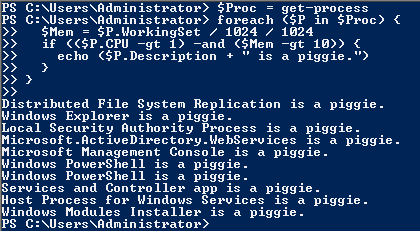
The automatic variable $_ is handy if you are processing something along the pipeline.  But if you need to run multiple commands against the elements or do more complex processing it is often easier to assign a variable to each element:
In this example I get the running processes.  I use the ForEach-Object cmdlet to loop through the array and find processes that consume a lot of memory and CPU.  I then exact my revenge on these processes through petty name calling.

If you will be working with PowerShell you need to get used to working with arrays.  Check out some of the resource links on the sidebar for more useful tips on working with them.

Commentors: Did I miss any good Ray's in the links?